Buying Guide
Best SSDs in India 2026: Top Picks for Laptops, Gaming and Professionals
Compare the best SSDs in India for Laptops, Gaming and Professional use. Explore top NVMe and SATA options based on Speed, Compatibility, Performance and Value.
Best SSDs in India 2026: Top Picks for Laptops, Gaming and Professionals
A slow Storage Drive can make an otherwise capable Computer feel frustratingly outdated. Windows takes longer to start, applications hesitate before opening, games spend more time on loading screens, and transferring large files becomes unnecessarily painful.
Installing an SSD is often one of the most noticeable upgrades you can make to a laptop or desktop. However, choosing one has become more complicated. Buyers must now compare SATA and NVMe drives, PCIe generations, M.2 sizes, storage capacities, endurance ratings and advertised speeds that may not reflect everyday performance.
The best SSD is not automatically the fastest or most expensive model. A premium PCIe 5.0 drive may look impressive on paper, but it offers limited value if your laptop only supports PCIe 3.0. Similarly, someone upgrading an older computer may need a 2.5-inch SATA SSD rather than an M.2 NVMe drive.
This Guide simplifies that decision. We have shortlisted SSDs for common requirements, including everyday Laptop Upgrades, Gaming, Professional Workloads and Budget-Conscious Storage Expansion.
Find the Right SSD for Your Needs
Not sure which SSD fits your device and budget? Get a personalized recommendation based on your requirements.
Best SSDs in India: Quick Comparison
| SSD | Best For | Interface | Advertised Read Speed | Key Consideration |
|---|---|---|---|---|
| Samsung 990 PRO | Best overall PCIe 4.0 SSD | PCIe 4.0 NVMe | Up to 7,450 MB/s | Premium pricing |
| Crucial T500 | Performance and value | PCIe 4.0 NVMe | Up to 7,400 MB/s | Performance varies by capacity |
| WD_BLACK SN850X | Gaming PCs and PlayStation 5 | PCIe 4.0 NVMe | Up to 7,300 MB/s | Heatsink version may cost more |
| Kingston NV3 | Affordable NVMe upgrade | PCIe 4.0 NVMe | Up to 6,000 MB/s | Best suited to everyday workloads |
| Crucial MX500 | Older laptops and desktops | 2.5-inch SATA | Up to SATA-class speeds | Slower than modern NVMe drives |
Our Top SSD Recommendations for 2026
1. Samsung 990 PRO: Best Overall PCIe 4.0 SSD
The Samsung 990 PRO remains a strong premium PCIe 4.0 option for Gaming Computers, High-Performance Workstations and Professional Workloads. It offers sequential read speeds of up to 7,450 MB/s and write speeds of up to 6,900 MB/s on Supported Systems.
It is a suitable choice for buyers who regularly transfer large files, edit high-resolution media, run demanding applications or want a responsive primary drive. Samsung also provides a five-year limited warranty, subject to the drive reaching its specified endurance limit.
- Best for: Gaming, Creative Applications and High-Performance Computers
- Interface: PCIe 4.0 NVMe
- Read Speed: Up to 7,450 MB/s
- Write Speed: Up to 6,900 MB/s
- Main Drawback: It may cost more than other Capable PCIe 4.0 drives
View the official Samsung 990 PRO specifications
2. Crucial T500: Best Balance of Performance and Value
The Crucial T500 is a compelling option for buyers seeking premium PCIe 4.0 performance without automatically choosing the most expensive drive. Selected versions offer advertised sequential read speeds of up to 7,400 MB/s and write speeds of up to 7,000 MB/s.
Its performance makes it suitable for fast system Boot Times, Modern Games, Large Applications and Content-Creation Workloads. Buyers should check the Specifications of the exact capacity they intend to purchase because performance can differ between variants.
- Best for: Gaming, Productivity and Content Creation
- Interface: PCIe 4.0 NVMe
- Read Speed: Up to 7,400 MB/s
- Write Speed: Up to 7,000 MB/s
- Main Drawback: Performance Specifications vary by Capacity
View the Official Crucial T500 Specifications
3. WD_BLACK SN850X: Best SSD for Gaming
The WD_BLACK SN850X is designed for Performance-Focused Gaming Systems and is available with or without a Heatsink. Depending on capacity, the drive offers sequential read speeds of up to 7,300 MB/s and write speeds of up to 6,600 MB/s.
The heatsink version can be useful for Gaming Desktops and compatible PlayStation 5 installations where sustained performance and Temperature Control matter. Before Purchasing, check the Physical Clearance and Storage Requirements of your system.
- Best for: Gaming PCs and PlayStation 5 Storage Expansion
- Interface: PCIe 4.0 NVMe
- Read speed: Up to 7,300 MB/s
- Write speed: Up to 6,600 MB/s
- Main drawback: The Heatsink Model may carry a Price Premium
View the official WD_BLACK SN850X specifications
4. Kingston NV3: Best Affordable NVMe Upgrade
The Kingston NV3 is intended for buyers who want to move from a Hard Drive, SATA SSD or older NVMe drive to a more affordable PCIe 4.0 option. The 1TB version is rated for sequential speeds of up to 6,000 MB/s read and 4,000 MB/s write, while specifications vary across capacities.
It is a practical option for everyday Computing, Office Applications, Student Laptops, general Gaming and Secondary Storage. Professionals who regularly write very large files may benefit from a Higher-End drive designed for sustained Workloads.
- Best for: Everyday Laptops, Office Work and budget PC Upgrades
- Interface: PCIe 4.0 NVMe
- Capacity options: 500GB to 4TB
- Read speed: Up to 6,000 MB/s on selected capacities
- Main drawback: Not the First Choice for Sustained Professional Workloads
View the Official Kingston NV3 Specifications
Important Performance and Compatibility Note
Advertised SSD speeds represent Maximum Performance under specific Testing Conditions. Actual results depend on the SSD capacity, available PCIe Lanes, Motherboard or Laptop Compatibility, Cooling, Firmware, Operating System and Workload.
A PCIe 4.0 SSD can normally operate in a compatible PCIe 3.0 slot, but its performance will be limited by the older interface. Before purchasing, confirm that your device supports the drive’s Interface, Physical Size and Storage Capacity.
SSD prices and availability change frequently. Compare the current price, seller reputation, return policy and manufacturer warranty before placing an order.
Need Help Choosing an SSD?
Tell MiniDevices your Budget, Preferred Category and intended use to receive a Personalized Gadget Recommendation.
How to Choose the Right SSD
Choosing an SSD becomes much easier when you begin with Compatibility and intended use instead of Advertised Speed. A High-Performance drive will not provide its full benefit if your computer does not support its interface, while an affordable SSD may be perfectly adequate for Office Work, Studying and Everyday Applications.
Before comparing Brands, check the type of SSD your Device Supports, how much Storage you need and the kind of Workload you expect the Drive to Handle.
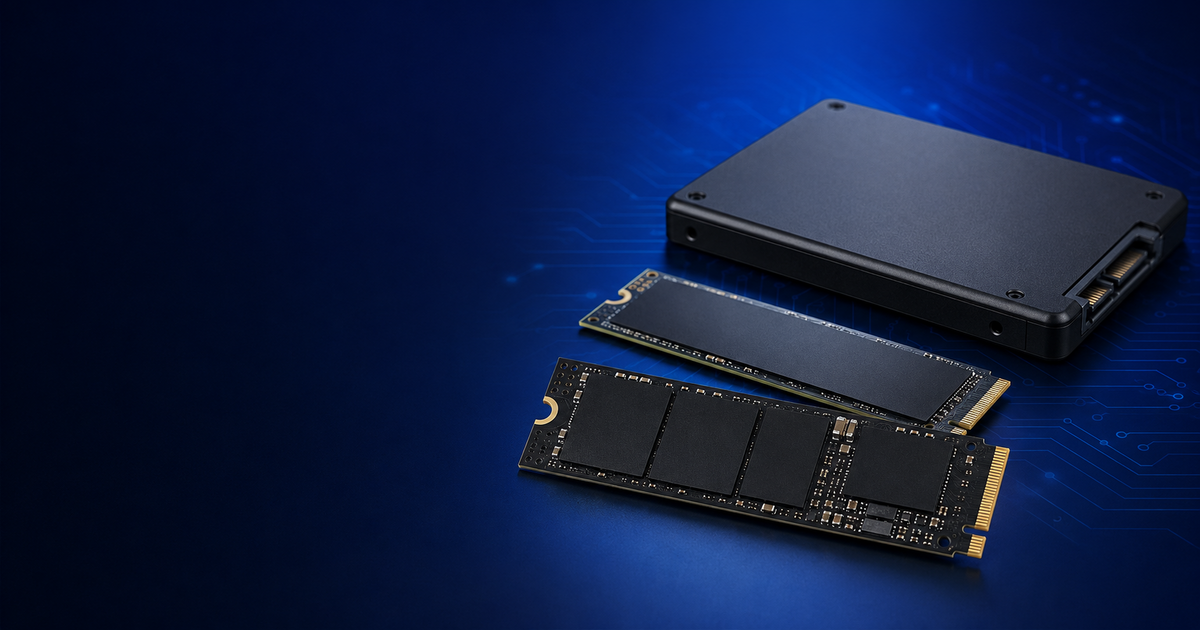
1. SATA vs NVMe SSD: Which One Do You Need?
SATA and NVMe are the two main types of consumer SSDs. Both are significantly faster and more responsive than a traditional mechanical Hard Drive, but they use different connections and offer different Performance Levels.
| Feature | SATA SSD | NVMe SSD |
|---|---|---|
| Common Form | 2.5-inch or M.2 SATA | M.2 NVMe |
| Interface | SATA | PCI Express |
| Performance | Suitable for Everyday Computing | Better for demanding and Data-Heavy Workloads |
| Best use | Older Laptops, office PCs and affordable upgrades | Modern Laptops, Gaming PCs and Professional Systems |
| Compatibility | Requires a Compatible SATA Connection | Requires an NVMe-Compatible M.2 slot |
A SATA SSD remains a worthwhile Upgrade for an older Laptop or Desktop that currently uses a mechanical Hard Drive. It can noticeably improve Boot time, Application Loading and General Responsiveness.
An NVMe SSD is usually the better choice for a modern system with a compatible M.2 slot. NVMe communicates through the PCIe bus and can deliver Lower Latency and Substantially Higher transfer Speeds than SATA.
2. Understand PCIe 3.0, PCIe 4.0 and PCIe 5.0
NVMe SSDs Commonly use PCIe 3.0, PCIe 4.0 or PCIe 5.0. Each newer generation provides greater potential Bandwidth, but the practical benefit depends on the Computer and Workload.
- PCIe 3.0: Suitable for everyday Computing, Office Work, Development and General Gaming.
- PCIe 4.0: A strong choice for modern Gaming Systems, Content Creation and demanding Applications.
- PCIe 5.0: Intended for newer High-Performance systems and workloads involving very large file transfers or intensive Data Processing.
PCIe generations are generally backward compatible. For example, a PCIe 4.0 SSD may operate in a PCIe 3.0-compatible slot, but it will be limited by the performance available from the older interface.
Buying a PCIe 5.0 SSD only makes sense when your motherboard, processor and M.2 slot support PCIe 5.0 and your workload can benefit from the additional performance. For most buyers, a good PCIe 4.0 drive offers a better balance of speed, compatibility and cost.
3. Choose the Right Storage Capacity
The ideal capacity depends on your Applications, Games, Files and future Storage Requirements. Avoid choosing a drive based only on what you need today because Operating Systems, Software and Games continue to grow.
| Capacity | Suitable For | Consideration |
|---|---|---|
| 500GB | Office Work, Students and Basic Home Use | Can fill Quickly after Installing Large Applications or Games |
| 1TB | Most Laptops, Desktops, Gamers and Developers | Usually the best balance of Capacity and Price |
| 2TB | Large Game Libraries, Creators and Professional Users | Higher Initial cost but more room for Future Growth |
| 4TB or More | High-Resolution Media, Specialist Workloads and Large Libraries | Premium Pricing and Compatibility should be checked carefully |
For most buyers in 2026, a 1TB SSD is a practical starting point. It provides enough room for the Operating System, Applications, Personal Files and several games without becoming unnecessarily Expensive.
Remember that the usable Storage displayed by your Operating System will be lower than the capacity printed on the Packaging.
4. Check Your Laptop or Motherboard Compatibility
Compatibility is more important than speed. Before purchasing an SSD, check the Laptop Manual, Motherboard Specifications or the Support Page for your exact Device Model.
Confirm the following:
- Whether the Device supports a 2.5-inch SATA drive, M.2 SATA drive or M.2 NVMe drive.
- The Supported M.2 length, such as 2230, 2242 or 2280.
- The PCIe Generation supported by the Relevant M.2 slot.
- Whether the slot shares Bandwidth with another M.2 slot or SATA port.
- The Maximum supported Storage Capacity, if the Manufacturer specifies one.
- Whether opening the Device affects its Warranty.
- Whether you need a Mounting Screw, Bracket, Cable or Heatsink.
The most common consumer NVMe size is M.2 2280, meaning the drive is approximately 22mm wide and 80mm long. Smaller laptops and handheld devices may require a shorter drive such as M.2 2230.
5. TLC vs QLC NAND
NAND is the Flash Memory used to store Data inside an SSD. Two Common types in Consumer SSDs are TLC and QLC.
- TLC NAND: Stores Three bits per Memory Cell and generally offers a strong balance of Performance, Endurance and Cost.
- QLC NAND: Stores Four bits per Cell, allowing Manufacturers to provide Higher Capacities at a Lower Cost per Gigabyte.
QLC Drives can provide good value for Everyday Computing, Gaming Libraries and Workloads that mostly involve reading Data. However, some QLC Drives may slow down more noticeably during Long, sustained write Operations after their High-Speed cache is Filled.
A TLC drive is generally preferable for frequent Large File transfers, Video Editing, Virtual Machines and other Write-Heavy professional Workloads. NAND type is important, but the Controller, Firmware, Cache design and overall drive Quality also affect Performance.
6. Understand SSD Endurance and TBW
SSD Endurance is commonly expressed as TBW, or Terabytes written. This indicates the amount of Data that the Manufacturer expects can be written to the drive within the Warranty Conditions.
A Higher TBW rating may be useful for Workloads that write Large amounts of Data regularly, including:
- High-Resolution Video Editing
- Professional Photography Workflows
- Virtual Machines
- Software Development and Frequent Builds
- Large Databases
- Continuous Recording or Data Processing
Most ordinary users are unlikely to exhaust the endurance rating of a reputable consumer SSD during normal use. However, buyers comparing professional or write-intensive drives should review both the TBW rating and warranty period.
7. DRAM Cache and Host Memory Buffer
Some premium SSDs include dedicated DRAM that helps the controller manage Data Locations efficiently. Other drives use Host Memory Buffer, commonly called HMB, to use a small portion of the computer’s system memory.
A DRAM-equipped SSD may provide more consistent Performance during Sustained or Demanding Workloads. DRAM-less and HMB-based drives can still perform well for everyday Computing and Gaming, particularly when they use a capable Controller and Modern NAND.
Do not reject an SSD simply because it does not contain dedicated DRAM. Consider the complete Product, its intended Workload, Independent Performance Data, Endurance and Price.
8. Do You Need an SSD Heatsink?
High-performance NVMe SSDs can generate heat during demanding Workloads. If Temperatures become Excessive, the drive may Temporarily reduce its Performance to Protect itself.
A Heatsink is most useful when:
- You are installing a High-Performance PCIe 4.0 or PCIe 5.0 SSD.
- The drive will handle extended File Transfers or Professional Workloads.
- Your Desktop has Limited Airflow around the M.2 slot.
- You are Installing a compatible SSD in a PlayStation 5.
Many modern Motherboards include an M.2 Heatsink. If yours already has one, Purchasing an SSD with a Permanently attached Heatsink may create a fitment issue. Check the Motherboard instructions before Deciding.
For PlayStation 5 Storage Expansion, Sony requires a compatible PCIe Gen4 M.2 NVMe SSD and a suitable Heat-Dissipation structure. M.2 SATA Drives are not Supported.
9. Warranty, Firmware and Brand Support
A strong Warranty is Valuable, but it should be considered alongside the Endurance Limit. SSD Warranties may end when either the stated Time Period or the Applicable Endurance Limit is reached.
Prefer a Manufacturer that Provides:
- A clearly stated Warranty and TBW Rating
- Firmware Updates and SSD Management Software
- Accessible Technical Documentation
- Support within your Region
- A Straightforward Replacement Process
Purchase from a Reputable Seller and keep the Invoice. Storage Products are sometimes sold through Unofficial Channels, which may complicate Warranty Claims.
10. SSD Buying Checklist
- Confirm whether your Device supports SATA or NVMe.
- Check the required Form Factor and M.2 length.
- Verify the supported PCIe generation.
- Choose enough Capacity for Current and Future needs.
- Compare TLC and QLC based on your Workload.
- Review the TBW Rating and Warranty.
- Check whether your System already includes an M.2 Heatsink.
- Confirm the Seller and Regional Warranty Coverage.
- Back up important Files before Replacing or Cloning a Drive.
- Verify the Final Price and Specifications before Ordering.
Still Unsure Which SSD to Choose?
Tell MiniDevices your Budget, Category and intended use to receive a personalized Gadget Recommendation.
Technical References
- NVM Express specifications
- Crucial: SSD types, interfaces and compatibility
- Kingston: SLC, MLC, TLC and QLC NAND
- Kingston: SSD endurance and TBW
- PlayStation: PS5 M.2 SSD requirements
Best SSDs by Use Case
There is no single SSD that is perfect for every Computer and Workload. A Laptop user may value Efficiency and Compatibility, while a Gamer may prioritize Capacity, Loading Performance and Thermal Management. Professionals working with Large Files may need stronger sustained Performance and Endurance.
Based on the Models covered in this Guide, these are our recommended starting points for different Requirements.
Best SSD for Laptops: Kingston NV3
The Kingston NV3 is a practical option for upgrading a compatible everyday laptop. Its single-sided M.2 2280 design can fit many thin laptops and compact computers, while its PCIe 4.0 interface provides a substantial performance upgrade over mechanical hard drives and older SATA storage.
The 1TB model offers advertised sequential read speeds of up to 6,000 MB/s. That is more than sufficient for common laptop workloads such as office applications, web browsing, studying, software development and general multitasking.
- Recommended Capacity: 1TB
- Best For: Students, Office Users and Everyday Laptops
- Main Advantage: Affordable PCIe 4.0 performance
- Consider before Buying: Confirm that your Laptop supports M.2 2280 NVMe drives
Users who frequently edit large videos, operate multiple virtual machines or perform sustained write-heavy work may benefit from a higher-end TLC drive.
Best SSD for Gaming PCs: WD_BLACK SN850X
The WD_BLACK SN850X remains a strong choice for gaming computers. Selected capacities offer advertised sequential read speeds of up to 7,300 MB/s, making the drive suitable for modern games, large installations and performance-focused desktop builds.
It is available with and without a heatsink. If your motherboard already includes an M.2 heatsink, the standard version may be the better fit. If the slot has no cooling, the heatsink model may help manage temperatures during demanding workloads.
- Recommended capacity: 1TB or 2TB
- Best for: Gaming PCs and large game libraries
- Main advantage: Strong PCIe 4.0 gaming performance
- Consider before buying: Check heatsink clearance and available M.2 slots
A 2TB version is worth considering for gamers who install several modern titles simultaneously. A 1TB drive remains a sensible option for smaller libraries and tighter budgets.
Best SSD for PlayStation 5: WD_BLACK SN850X with Heatsink
The WD_BLACK SN850X with a compatible heatsink is also a suitable option for expanding PlayStation 5 storage. Sony requires a compatible PCIe Gen4 M.2 NVMe SSD with an appropriate heat-dissipation structure. M.2 SATA drives are not supported.
Before purchasing, check that the exact SN850X model and heatsink dimensions meet Sony’s current requirements. You should also install the latest PlayStation 5 system software before adding the drive.
- Recommended capacity: 1TB or 2TB
- Best for: Expanding PlayStation 5 game storage
- Main advantage: High-speed Gen4 performance with a heatsink option
- Consider before buying: Select the heatsink version and verify the exact dimensions
Best SSD for Professionals and Creators: Samsung 990 PRO
The Samsung 990 PRO is our premium PCIe 4.0 recommendation for professionals working with demanding applications and large files. It offers advertised sequential speeds of up to 7,450 MB/s read and 6,900 MB/s write on supported systems.
It is well suited to high-resolution media workflows, software development, professional applications and performance-focused workstations. Buyers should still remember that short benchmark results do not fully represent sustained real-world performance.
- Recommended Capacity: 1TB or 2TB
- Best for: Creators, Developers and Professional Workstations
- Main Advantage: Premium PCIe 4.0 Performance and Strong Brand Support
- Consider before buying: Higher price compared with value-focused alternatives
Professionals should compare the warranty and TBW rating of the exact capacity they intend to purchase. Higher-capacity versions commonly provide greater endurance and more working space for large projects.
Best Performance and Value SSD: Crucial T500
The Crucial T500 is a strong alternative for buyers seeking premium PCIe 4.0 performance at a competitive price. Selected versions provide advertised speeds of up to 7,400 MB/s read and 7,000 MB/s write.
It can serve as a primary SSD for gaming, productivity, content creation and demanding applications. However, specifications vary by capacity, so check the exact version before purchasing.
- Recommended capacity: 1TB or 2TB
- Best for: Gaming, productivity and content creation
- Main advantage: High-end Gen4 performance with strong value potential
- Consider before buying: Performance and endurance vary between capacities
Best SSD for Older Computers: Crucial MX500
Not every computer supports an NVMe SSD. For an older laptop or desktop with a 2.5-inch SATA connection, the Crucial MX500 remains a practical upgrade from a mechanical hard drive.
It cannot match the maximum speeds of a modern NVMe drive, but everyday improvements can still be significant. The operating system should start faster, applications should load more quickly and the computer should feel more responsive.
- Recommended capacity: 500GB or 1TB
- Best for: Older laptops and desktops
- Main advantage: Straightforward SATA upgrade
- Consider before buying: Confirm the device has a replaceable 2.5-inch drive
You may need a mounting bracket, SATA cable or USB-to-SATA enclosure when installing or cloning the drive.
Which SSD Should You Buy?
| Your Requirement | Recommended Starting Point |
|---|---|
| Everyday laptop upgrade | Kingston NV3 1TB |
| Gaming PC | WD_BLACK SN850X 1TB or 2TB |
| PlayStation 5 | WD_BLACK SN850X with Heatsink |
| Professional workstation | Samsung 990 PRO |
| Performance and value | Crucial T500 |
| Older SATA-based computer | Crucial MX500 |
Frequently Asked Questions
Is a 500GB SSD enough in 2026?
A 500GB SSD can be enough for office work, studying, browsing and basic home use. However, the available space can become limited after installing the operating system, applications and several large games. A 1TB SSD offers greater flexibility for most users.
Is 1TB the best SSD capacity for most people?
Yes. A 1TB SSD usually provides a practical balance of capacity, performance and price. It is suitable for most laptops, desktops, gaming systems and development environments.
Will a PCIe 4.0 SSD work in a PCIe 3.0 slot?
In many systems, a PCIe 4.0 NVMe SSD can operate in a compatible PCIe 3.0 slot. However, its performance will be limited to what the older interface and system can provide. Always verify compatibility with your device manufacturer.
Is NVMe always better than SATA?
NVMe provides substantially higher potential performance, but SATA may be the only supported option in an older computer. A SATA SSD can still be a major improvement over a mechanical hard drive.
Do I need a heatsink for my NVMe SSD?
Not every SSD requires a separate heatsink. High-performance PCIe 4.0 and PCIe 5.0 drives are more likely to benefit from cooling during sustained workloads. Many desktop motherboards already include an M.2 heatsink.
Does a faster SSD increase gaming frame rates?
An SSD generally improves loading, installation, file-transfer and system-response times rather than directly increasing average frame rates. The processor and graphics card usually have a greater effect on in-game frame-rate performance.
Can I install an NVMe SSD in any M.2 slot?
No. M.2 describes the physical format, but an M.2 slot may support SATA, NVMe or both. Check your laptop or motherboard documentation before purchasing.
Is TLC better than QLC?
TLC generally offers better endurance and more consistent sustained performance. QLC can provide higher capacity at a lower price and may be suitable for everyday computing, game storage and read-heavy use.
How long does an SSD last?
SSD lifespan depends on NAND type, capacity, workload, operating temperature, controller quality and the amount of data written. Review the manufacturer’s TBW rating and warranty for the specific model and capacity.
Should I clone my Existing Drive or Reinstall Windows?
Cloning can preserve your applications, files and settings, while a clean installation provides a fresh operating-system setup. Back up important files before using either method and confirm that the destination SSD has enough capacity.
Final Verdict
The best SSD for you is the one that matches your computer, workload and budget. Do not choose a drive based only on the largest advertised speed.
For most modern computers, a 1TB PCIe 4.0 NVMe SSD provides the best overall balance. The Kingston NV3 is a practical everyday option, the WD_BLACK SN850X is well suited to gaming, the Crucial T500 balances high performance and value, and the Samsung 990 PRO remains a premium choice for demanding users.
If your computer only supports a 2.5-inch SATA drive, an SSD such as the Crucial MX500 can still deliver a noticeable improvement over a mechanical hard drive.
Before ordering, verify the Interface, Physical Size, PCIe Generation, Warranty, Seller and Final Price. These checks are more important than choosing the fastest Specification on the Product Page.
Find the Right SSD with MiniDevices
Get a personalized Gadget Recommendation based on your Budget, Preferred Category and Intended Use.
Prices, Product Availability and Specifications may Change. Verify the Latest Information with the Manufacturer and Retailer before Purchasing.