SSD
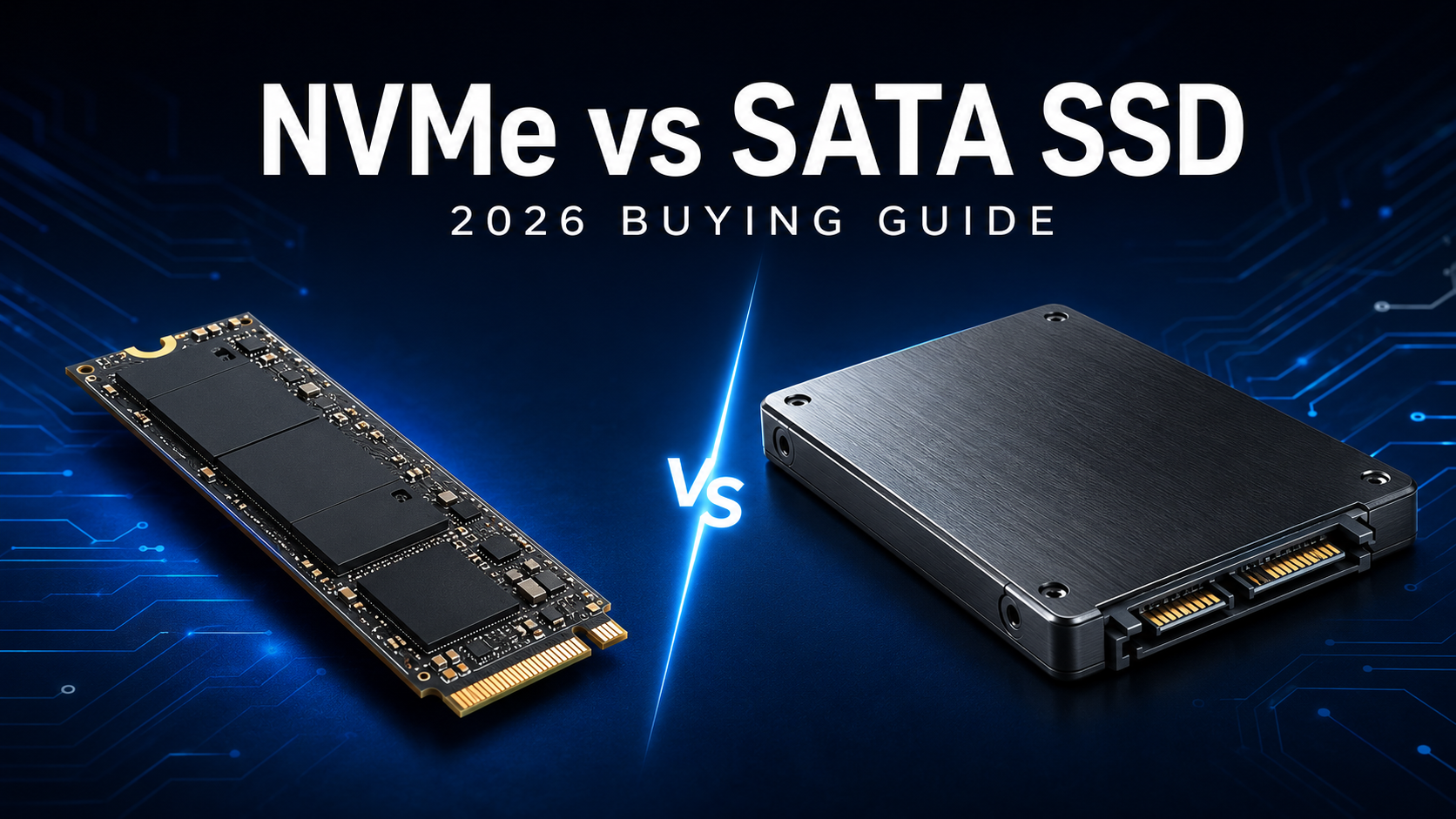
NVMe vs SATA SSD: Which One Should You Buy in 2026?
Compare NVMe and SATA SSDs by Speed, Compatibility, Price and everyday Performance to decide which type of Storage is right for your Computer.
Choosing between an NVMe SSD and a SATA SSD can feel confusing. Both are much faster than a traditional Hard Drive, but they use different technologies and can deliver very different levels of performance.
For most modern computers in 2026, an NVMe SSD is the better choice. It is faster, compact and easy to install in a compatible M.2 slot. However, SATA SSDs are still useful when upgrading an older Laptop or Desktop, especially if the computer does not support NVMe.
In this guide, we will explain the differences between NVMe and SATA SSDs in simple terms. We will also help you decide which option best fits your computer, budget and daily needs.
Quick Answer: Should You Buy NVMe or SATA?
Choose an NVMe SSD if your computer supports it and the price is reasonably close to a comparable SATA SSD. It is the best option for most modern Laptops, Gaming PCs, Workstations and new computer builds.
Choose a SATA SSD if you are upgrading an Older Computer, need affordable Secondary Storage or do not have an available M.2 NVMe slot.
- Best for most Modern Computers: NVMe SSD
- Best for Older Computers: SATA SSD
- Best for Gaming: NVMe SSD
- Best for Large file Transfers: NVMe SSD
- Best for replacing an Old Hard Drive: Either option
- Best for Additional Storage: Whichever Compatible Drive offers better value
What Is a SATA SSD?
SATA stands for Serial ATA. It is an older storage interface originally designed for Devices such as mechanical Hard Drives. SATA SSDs use the same interface but replace moving disks with much faster flash Memory.
Most SATA SSDs come in a 2.5-inch form factor. In a desktop computer, they usually require a SATA data cable connected to the motherboard and a separate power cable connected to the power supply.
A good SATA SSD can typically reach sequential speeds of around 500 to 550 MB/s. This is considerably faster than a traditional hard drive and is more than enough for everyday work, web browsing, office applications and general file storage.
Some M.2 drives also use the SATA interface. This is important because M.2 describes the physical size and shape of a drive. It does not automatically mean the drive uses NVMe technology.
Advantages of SATA SSDs
- Compatible with many older Desktops and Laptops
- Much faster than traditional mechanical Hard Drives
- Useful when no NVMe slot is available
- Suitable for Documents, Photos, Videos and general Storage
- Often easy to Install as a Replacement for a 2.5-inch Hard Drive
Limitations of SATA SSDs
- Limited by the maximum speed of the SATA Interface
- Slower than NVMe during Large File Transfers
- Usually requires separate Data and Power Cables
- May offer less value when an NVMe drive costs almost the same
What Is an NVMe SSD?
NVMe stands for Non-Volatile Memory Express. Unlike SATA, NVMe was designed specifically for modern solid-state storage.
Consumer NVMe SSDs usually communicate directly through the PCI Express connection. This gives them access to considerably more bandwidth and allows them to process storage requests more efficiently.
Most consumer NVMe drives use the M.2 2280 form factor. The number 2280 means that the drive is approximately 22 millimetres wide and 80 millimetres long. Other sizes are available, so it is worth checking your laptop or motherboard specifications before purchasing.
NVMe drives are available across several PCIe generations, including Gen 3, Gen 4 and Gen 5. Newer generations can provide higher speeds, but the actual performance also depends on the drive’s controller, flash memory, cache, cooling and overall design.
Advantages of NVMe SSDs
- Much faster potential performance than SATA
- Better suited to demanding applications and large files
- Compact installation without separate cables
- Ideal for gaming, content creation and professional work
- The preferred storage type for most modern computers
Limitations of NVMe SSDs
- Requires a compatible PCIe M.2 slot
- High-performance models can generate additional heat
- Older computers may not support NVMe boot drives
- Premium models may cost more without improving basic everyday tasks
NVMe vs SATA SSD: What Are the Main Differences?
1. Interface and Technology
SATA SSDs normally use the SATA interface and AHCI protocol. AHCI was developed when mechanical hard drives were still the main type of computer storage.
NVMe SSDs generally use PCI Express and a protocol created specifically for flash storage. This allows them to handle more commands and use significantly more bandwidth.
2. Speed
SATA SSDs usually reach sequential read and write speeds of around 500 to 550 MB/s. NVMe SSDs can reach several thousand megabytes per second, depending on the model and PCIe generation.
These higher speeds are most noticeable when copying large files, loading complex projects, editing high-resolution videos or working with large game installations.
Advertised speed is not the whole story, though. Some drives slow down after their high-speed cache fills up, while others maintain stronger performance during longer transfers.
3. Everyday Performance
Moving from a hard drive to either type of SSD creates a noticeable improvement. Your computer starts faster, programs open more quickly and everyday navigation feels smoother.
The difference between SATA and NVMe may be less obvious during lighter activities such as browsing the internet, checking email or editing documents. These tasks do not usually require the drive to operate at its maximum speed.
NVMe is technically faster, but you should not expect every application to become several times faster simply because the benchmark numbers are higher.
4. Gaming
An NVMe SSD can improve loading, installation and file-transfer times. However, it does not normally increase the number of frames per second produced by your graphics card and processor.
Newer games with large textures and detailed environments may benefit more from faster storage. Even so, the difference between a good SATA SSD and an NVMe SSD may be modest in games that are not heavily dependent on storage performance.
For a new gaming computer, NVMe is still the more sensible choice because it is fast, compact and supported by most modern motherboards.
5. Content Creation and Large Files
NVMe provides a clearer advantage for people who regularly work with large files. Video editors, photographers, designers and developers may notice faster project loading, file transfers, caching and exports.
Remember that transfer speed is also affected by the second device. Copying a file from a fast NVMe SSD to a slow external hard drive will still be limited by the external drive.
6. Heat and Cooling
SATA SSDs generally have modest cooling requirements. High-performance NVMe SSDs can become hot during demanding or sustained workloads.
Some NVMe drives temporarily reduce their speed when they become too hot. Many desktop motherboards include an M.2 heatsink to help manage this heat.
Laptop users should check the available space and cooling requirements before buying an NVMe SSD with a large heatsink.
7. Installation
A 2.5-inch SATA SSD usually needs a compatible drive bay, a SATA data cable and a power connection.
An M.2 NVMe SSD fits directly into the motherboard and is secured with a small screw or tool-free latch. This results in a cleaner installation with fewer cables.
M.2 Does Not Always Mean NVMe
One of the most common mistakes is assuming that every M.2 SSD is an NVMe SSD. M.2 only describes the drive’s physical form factor.
An M.2 drive can use either the SATA or NVMe interface. Similarly, an M.2 slot may support SATA, NVMe, both types or only one of them.
Before buying an M.2 SSD, check the supported interface, drive length and PCIe generation in your laptop service manual or motherboard specifications.
Can You Use a Newer NVMe SSD in an Older Slot?
A newer NVMe drive can often work in a slot that supports an older PCIe generation. For example, a PCIe Gen 4 SSD may work in a Gen 3 slot, but its performance will be limited to Gen 3 speeds.
Compatibility can still depend on the motherboard, firmware and slot configuration. Always check the manufacturer’s documentation before purchasing.
There is little reason to pay significantly more for a Gen 5 SSD if your computer only supports Gen 3 speeds. A compatible mainstream drive may offer better overall value.
Which SSD Should You Choose?
For Home and Office Use
Choose a reasonably priced NVMe SSD if your computer supports one. It gives you better performance and leaves more room for future applications.
A SATA SSD is still perfectly suitable for web browsing, office work, online classes and general file storage.
For Gaming
Choose an NVMe SSD for a modern gaming computer. Focus on getting enough capacity and reliable performance instead of automatically buying the model with the highest advertised speed.
For Video Editing and Creative Work
An NVMe SSD is the better option for high-resolution video, large photo libraries and demanding creative applications. A second SSD can also be useful for project files, cache data and completed work.
For an Older Laptop
Check the laptop’s service manual before buying anything. If it only has a 2.5-inch SATA bay, installing a SATA SSD can still make the computer feel dramatically faster than it did with a hard drive.
For Secondary Storage
Compare the price, capacity, warranty and available connections. A SATA SSD can work well for photos, videos and documents, while NVMe is better when faster transfers are important.
What Should You Check Before Buying an SSD?
- Compatibility: Confirm whether your computer supports SATA, NVMe or both.
- Form factor: Check whether you need a 2.5-inch drive, M.2 2280 drive or another size.
- Available connections: Make sure the required slot or connector is not already occupied.
- PCIe generation: Match the drive sensibly with the performance supported by your computer.
- Capacity: Leave enough room for applications, updates, games and personal files.
- Endurance: Compare the manufacturer’s TBW rating if you regularly write large amounts of data.
- Warranty: Choose a drive with a clear and reliable manufacturer warranty.
- Cooling: Check whether the drive requires a heatsink and whether it will fit inside your computer.
- Data migration: Decide whether you will clone your existing drive or install the operating system again.
Is NVMe Worth the Extra Cost?
If the price difference is small and your computer supports NVMe, it is usually worth choosing the NVMe drive. You receive better performance, a cleaner installation and more flexibility for future workloads.
A large price difference may be harder to justify for basic home or office use. In that situation, extra capacity and a longer warranty may offer more practical value than the highest possible benchmark speed.
Compare drives with similar capacities and warranty periods. Avoid making your decision based only on the largest speed number shown on the product page.
Frequently Asked Questions
Is NVMe Always Faster Than SATA?
NVMe supports significantly more bandwidth than SATA. However, how much faster it feels depends on the drive, computer and activity. The difference may be small during basic tasks but much more noticeable during large transfers and demanding workloads.
Can an NVMe SSD Work in a SATA M.2 Slot?
Not always. An NVMe SSD requires an M.2 slot with compatible PCIe and NVMe support. Check your computer’s documentation before purchasing.
Can a SATA M.2 SSD Work in an NVMe-Only Slot?
Not necessarily. A slot that supports only PCIe NVMe may not recognise an M.2 SATA drive, even if the drive appears to fit physically.
Does an NVMe SSD Improve Gaming FPS?
An NVMe SSD mainly improves loading, installation and file-access times. Gaming frame rates are generally determined by the processor, graphics card, memory and game settings.
Is a SATA SSD Still Worth Buying in 2026?
Yes. SATA SSDs remain useful for older computers, secondary storage and systems without an available NVMe slot. They are also considerably faster than traditional mechanical hard drives.
Should You Buy PCIe Gen 3, Gen 4 or Gen 5?
Choose the generation that matches your computer, workload and budget. Gen 4 offers a good balance for many modern systems. Gen 5 is more suitable for demanding workloads, while Gen 3 remains capable for everyday use.
Final Verdict
An NVMe SSD is the best overall choice for most compatible computers in 2026. It provides faster performance, a compact cable-free installation and better support for demanding applications.
SATA SSDs still have an important place. They are excellent upgrades for older computers and practical secondary-storage options when an NVMe slot is unavailable.
Start by checking your computer’s compatibility. Then compare the capacity, warranty, endurance and sustained performance of suitable drives. The SSD with the biggest advertised speed number is not always the one that offers the best value.
If you need more help choosing a specific drive, read our complete SSD buying guide .