Keyboard
Ergonomic Keyboards Explained: Are they Worth it in 2026?
Understand Split, Curved, Tented and contoured Ergonomic Keyboards, including their Benefits, Limitations, Adjustment time and suitability for Office work.
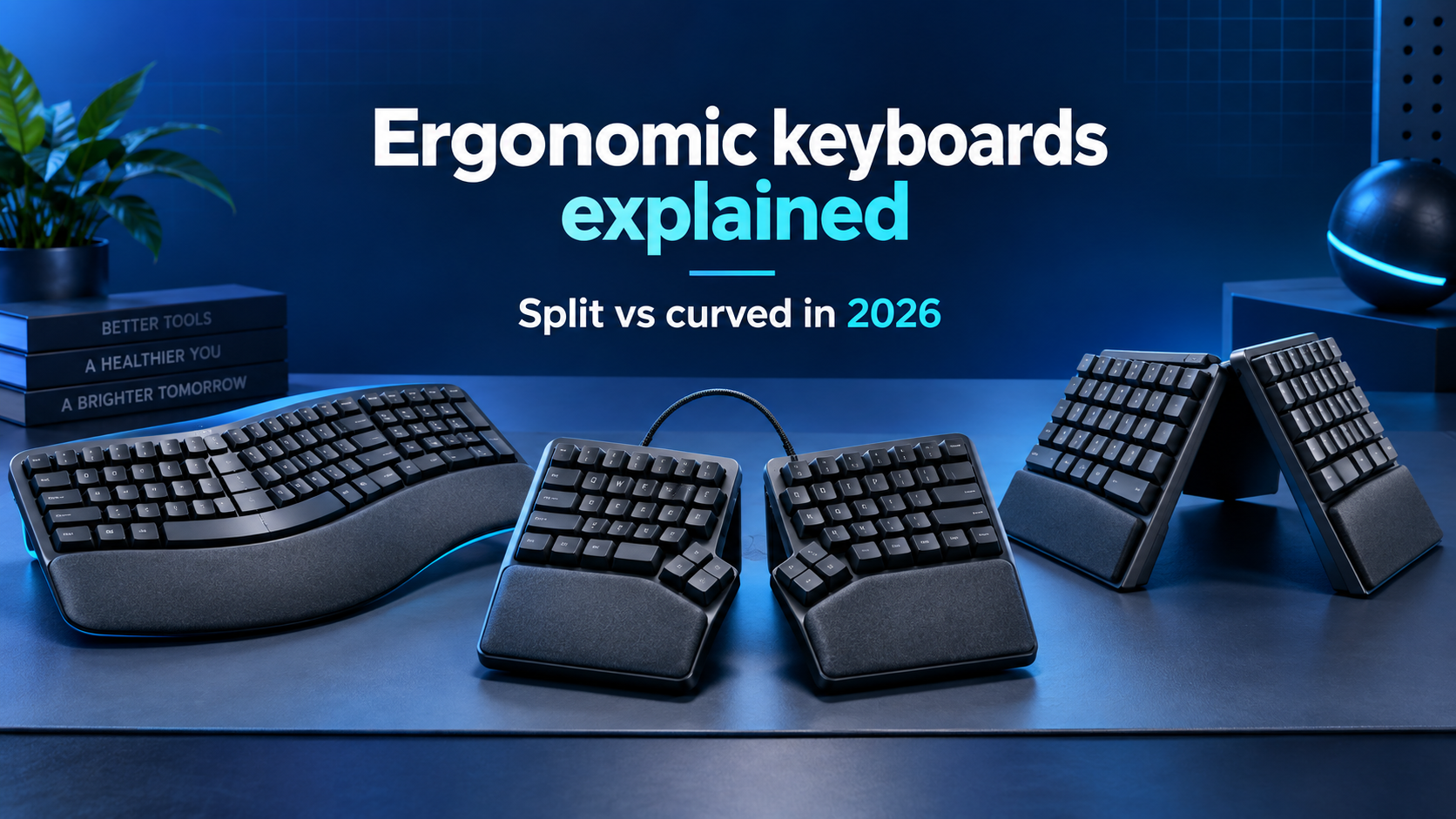
Ergonomic keyboards explained: Are split and curved keyboards worth it in 2026?
Most keyboards place every key in one straight rectangle, even though your arms approach the desk from two different angles. An ergonomic keyboard changes that arrangement through a curved keyframe, a divided typing area, raised centre sections or fully separate halves.
These changes can make it easier for some users to position their hands, wrists and forearms naturally. They can also introduce a learning curve, occupy more desk space and move familiar keys to unexpected locations.
An ergonomic label does not guarantee comfort, and one design will not suit everyone. The right choice depends on your shoulder width, typing technique, desk setup, preferred layout and willingness to adapt.
This guide explains fixed split, fully split, curved, tented and contoured keyboards, along with their advantages, limitations and office suitability. For a broader introduction to switches, sizes and connectivity, begin with our Best keyboard buying guide 2026.
Quick answer
- Choose a curved or fixed-split keyboard if you want a gentler transition from a conventional layout.
- Choose a fully split keyboard if you want to adjust the distance and angle of each half independently.
- Choose a tented keyboard if you prefer the thumb sides of your hands raised rather than resting completely flat.
- Choose a compact ergonomic keyboard if reducing mouse reach is important and you do not need a built-in number pad.
- Keep your current keyboard if it is comfortable, correctly positioned and you do not want to relearn key placement.
Ergonomic keyboards are worth considering when a standard keyboard makes your desk position feel cramped or forces your hands into an angle you dislike. They are not automatic upgrades for every typist, and they should not be treated as a cure for pain or a substitute for professional advice.
What is an ergonomic keyboard?
An ergonomic keyboard is designed to offer more positioning options than a conventional flat, straight board. It may separate the keys into left and right groups, curve those groups inward, raise the centre or place the keys in shaped wells.
The purpose is to help the user arrange the keyboard around the body instead of forcing both hands to meet at the centre of a rigid rectangle. This can affect three common movements:
- Sideways wrist angle: A split layout can reduce the need to angle the hands outward while the forearms approach the keyboard from the sides.
- Forearm rotation: Tenting raises the inner edges of the keyboard so the palms do not have to face completely downward.
- Upward wrist bending: A low front edge or negative tilt can help some users avoid lifting the hands sharply toward a tall keyboard.
These ideas are not exclusive to expensive specialist products. Some mainstream office keyboards use a gentle curve and integrated palm support, while enthusiast boards may provide separate halves, adjustable tenting and programmable thumb keys.
Ergonomics also depends on the rest of the workstation. A thoughtfully designed keyboard placed too high, too far away or at an unsuitable angle can still feel uncomfortable.
Types of ergonomic keyboards
Curved keyboards
A curved keyboard keeps the keys in one connected body but arranges them in a shallow arc. The curve helps the left and right key groups face each hand more directly.
This is usually the easiest ergonomic design for a new user. The keyboard remains visually familiar, standard shortcuts are accessible and the learning curve is modest. However, the curve is fixed, so it cannot match every shoulder width or preferred hand angle.
Fixed-split keyboards
A fixed-split keyboard divides the main typing area into two angled groups within one case. The gap may be physical or simply a separation between the key clusters.
Products such as the Logitech ERGO K860 combine a fixed split with a curved keyframe and adjustable palm lift. This style offers a noticeable change in hand position without requiring you to manage two separate keyboard modules.
Fully split keyboards
A fully split keyboard has two independent halves connected by a cable or wireless link. You can move the halves farther apart, rotate them and sometimes place them at different heights.
This provides the widest positioning range, but it demands more setup. Touch typists usually adapt more easily because looking down and hunting for keys becomes awkward when the halves are separated.
Tented keyboards
Tenting raises the inner edges of the left and right key sections, creating a shape similar to a shallow tent. Instead of placing the palms completely flat, it allows a position closer to a handshake angle.
Tenting may be fixed or adjustable. Start with a low setting; an aggressive angle can feel unfamiliar and may make the outer keys harder to reach.
Contoured keyboards
A contoured keyboard places keys in shaped wells rather than on one flat plane. The rows may be arranged in vertical columns, with common keys assigned to thumb clusters.
The Kinesis Advantage360 is an example of a fully split, contoured design with adjustable separation and tenting. This category provides extensive positioning options but often has the highest price and steepest learning curve.
Ortholinear and column-staggered keyboards
Conventional keyboards offset each row horizontally. Ortholinear boards use a grid, while column-staggered boards arrange keys in vertical columns with different heights for each finger.
These layouts may reduce sideways finger movement for some users, but they require relearning. Not every ortholinear keyboard is ergonomic, and not every ergonomic keyboard uses an ortholinear layout.
What ergonomic features actually change
Split distance
Moving the halves apart lets the hands sit closer to shoulder width. A fixed split offers one distance, while a fully split keyboard allows adjustment.
Wider is not always better. If the halves are placed too far apart, the elbows may move away from the body and the mouse may become difficult to reach. The goal is a relaxed position, not maximum separation.
Splay
Splay means rotating the two halves so their inner edges point toward each other. This can match the natural direction of the forearms. A fully split design lets you change the rotation, while a fixed board sets it permanently.
Tenting
Tenting changes forearm rotation by lifting the thumb side of each hand. Some boards provide several preset heights; others use stands or adjustable mounts.
High tenting can make a palm support less useful and may require a different mouse position. Adjust the keyboard and pointing device together rather than treating them as separate decisions.
Negative tilt
Many standard keyboards have feet at the back that raise the top row. Negative tilt does the opposite by raising the front or lowering the back relative to the hands. This may help when the keyboard sits below elbow level.
The correct angle depends on desk and chair height. Do not copy another person's setting without considering your own workstation.
Palm support
A palm support can provide a place to rest during pauses. It should not create hard pressure under the wrists while you actively type. Integrated supports are convenient, but removable or separate options offer more flexibility.
Thumb clusters
Some specialist keyboards move Space, Backspace, Enter, Delete or layer keys under the thumbs. This redistributes work that would otherwise fall on the little fingers, but it changes long-established habits and shortcut combinations.
Ergonomic keyboard designs compared
| Design | Adjustment | Learning curve | Desk space | Best for |
|---|---|---|---|---|
| Curved | Usually fixed | Low | Moderate to large | First-time ergonomic buyers |
| Fixed split | Fixed key angle; sometimes adjustable tilt | Low to moderate | Often large | Office users wanting a familiar layout |
| Fully split | Adjustable distance and rotation | Moderate | Variable | Touch typists wanting precise placement |
| Tented split | Distance, rotation and height may adjust | Moderate | Variable | Users who dislike typing with palms flat |
| Contoured | Varies by model | High | Moderate | Committed users comfortable relearning |
| Compact column-staggered | Often highly programmable | High | Small | Enthusiasts who use layers and remapping |
A curved or fixed-split board is the most practical entry point for many office users. A fully split or contoured design makes sense when adjustability matters more than immediate familiarity.
Potential advantages of an ergonomic keyboard
More flexible hand placement
The clearest benefit is the ability to position the keys around your hands. A fully split keyboard can accommodate different shoulder widths and lets each side rotate independently.
Less pressure to bring the hands together
A standard keyboard encourages both hands toward the centre. Split key groups can allow the forearms to approach the desk more directly, depending on how widely the halves are positioned.
Reduced mouse reach with compact models
A keyboard without a number pad can leave more space for the mouse. This may be useful if a full-size keyboard forces your pointing device far to the side. Our keyboard sizes explained guide compares full-size, tenkeyless and compact layouts.
Customisable key placement
Programmable ergonomic keyboards often allow remapping, macros and multiple layers. Frequently used commands can be moved to comfortable positions, although corporate computers may restrict configuration software.
Greater awareness of workstation setup
Changing keyboards often encourages users to reassess chair height, desk position and mouse placement. That broader review may be more valuable than focusing on one product in isolation.
Limitations and trade-offs
Initial loss of typing speed
A split layout exposes habits that standard keyboards allow you to hide. If you press the B key with the right hand or cross the centre line for shortcuts, you may need to change technique.
Unfamiliar key positions
Some designs move navigation keys, punctuation, function keys or shortcuts onto secondary layers. This can be efficient after practice but frustrating during the first few days.
Higher prices
Curved membrane keyboards can be affordable, but fully split mechanical and contoured models often cost considerably more. Accessories such as tenting kits, palm pads or separate number pads may add to the total.
Limited portability
Large curved boards take up significant bag space. Fully split models are compact individually but may require cables, stands and careful packing. Hybrid workers should consider whether the keyboard will remain at one desk.
Hot-desking inconvenience
A specialised layout is difficult to share, and moving between an ergonomic keyboard at home and a standard office keyboard may slow some users. A fixed-split board with conventional key positions is easier in mixed environments.
No guaranteed health outcome
An ergonomic keyboard changes positioning options; it does not diagnose or treat an injury. Comfort also depends on typing duration, breaks, desk height, chair setup and individual health. Persistent pain, tingling or numbness should be discussed with a qualified medical or workplace ergonomics professional.
How long does adjustment take?
A mildly curved keyboard may feel normal within hours. A fixed split can take several days, while a fully split or contoured board may require weeks before shortcuts and symbol keys become automatic.
Adjustment is easier when you introduce changes gradually:
- Begin with the two halves close together and almost flat.
- Use the keyboard for low-pressure tasks before relying on it during urgent work.
- Increase separation until the forearms feel relaxed.
- Add only a small amount of tenting.
- Practise problem keys and shortcuts rather than repeatedly typing random text.
- Change one variable at a time so you know what improves or worsens comfort.
Do not force yourself through increasing discomfort. A short-term drop in speed is normal; pain is not a useful training signal.
Are ergonomic keyboards good for office work?
They can be excellent office keyboards when the design matches the user and the workplace. Curved and fixed-split boards are straightforward choices for general productivity because they retain familiar key locations and usually include dedicated function keys.
Fully split keyboards are better for personal workstations than shared desks. They require time to position and may confuse colleagues who occasionally use the computer.
Noise also matters. A keyboard described as ergonomic may still use loud mechanical switches. For open-plan spaces, choose quiet membrane, scissor or silent mechanical keys. Our quiet keyboards for office work guide explains how switches, stabilisers and cases affect sound.
Useful office features
- Reliable connection that complies with company-device policies
- Multi-device switching for a laptop and desktop
- Clear Windows or macOS shortcut labels
- Dedicated number pad when numerical entry is frequent
- Quiet keys for meetings and shared workspaces
- Onboard remapping if software installation is restricted
- A suitable return period for testing the unfamiliar shape
Mechanical, membrane or scissor keys?
Ergonomic shape and key mechanism are separate decisions.
| Mechanism | Advantages | Trade-offs |
|---|---|---|
| Membrane | Affordable, often quiet and simple | Less switch choice and repairability |
| Scissor-switch | Low-profile, stable and familiar to laptop users | Limited customisation and usually fixed key feel |
| Mechanical | Wide choice of feel, durability and remapping options | Higher cost and potentially more noise |
| Low-profile mechanical | Slimmer design with mechanical switch choices | Smaller ecosystem than standard mechanical switches |
Mechanical models suit users who care about switch feel or want a repairable, programmable board. Membrane and scissor-switch models are often easier for offices and first-time buyers. Read our mechanical vs membrane keyboard comparison before choosing.
If keyboard height is important, our low-profile vs standard mechanical keyboard guide explains how case height and travel change the experience.
Layout, shortcuts and number pads
A specialised ergonomic shape may change more than the hand angle. Check every key you use during a normal workday.
- Number pad: Useful for finance, spreadsheet and operations work, but increases width and mouse reach.
- Navigation cluster: Confirm whether Home, End, Page Up and Page Down are dedicated or placed on a layer.
- Function row: Some compact boards require combinations for F1 to F12.
- Arrow keys: Their size and position vary considerably on split layouts.
- Shortcut keys: Check how Ctrl, Alt, Command and Windows keys are arranged on each half.
- Thumb keys: Decide whether you are comfortable moving Space, Enter or Backspace away from their traditional positions.
Compact layers are not automatically inefficient. Once learned, they can reduce hand movement. However, a familiar layout is safer when several people share the workstation or when your job requires constant movement between different computers.
How to position an ergonomic keyboard
OSHA's computer-workstation guidance recommends positioning the keyboard so the wrists are not bent up, down or to the sides. Use that neutral-position principle rather than chasing a dramatic keyboard angle.
- Centre the working keys: Centre the letter keys with your body, not the entire case when a number pad is attached.
- Keep it close: You should not have to reach forward and lift the shoulders to type.
- Start nearly flat: Use minimal tenting and tilt while you learn the layout.
- Adjust split width: Place the halves where the forearms can approach without forcing the wrists sideways.
- Move the mouse closer: Keep the pointing device beside the active keyboard section.
- Check elbow height: Adjust the chair or desk so the forearms can remain supported and relaxed.
- Use palm support thoughtfully: Rest the palms during pauses without pressing the wrists into a hard edge while typing.
Recheck the setup after several days. As your typing becomes more accurate, you may prefer slightly different separation or tenting.
How to choose the right ergonomic keyboard
Choose curved or fixed split if:
- This is your first ergonomic keyboard
- You want conventional key positions
- The workstation is occasionally shared
- You need a built-in number pad
- You do not want to manage two separate halves
Choose fully split if:
- You want adjustable separation and rotation
- You already touch type
- The keyboard will stay at your personal desk
- You are willing to spend time finding the right position
- You can accept a moderate learning period
Choose contoured or column-staggered if:
- You want thumb clusters and programmable layers
- You are comfortable changing established typing habits
- You value customisation more than immediate familiarity
- You have checked the return policy carefully
Keep a conventional keyboard if:
- Your current setup is comfortable
- You frequently switch between shared computers
- You cannot tolerate a temporary drop in typing speed
- You need a layout that colleagues can use immediately
Connectivity is another practical choice. A wireless split board reduces cable clutter but adds battery and pairing considerations. Our wired vs wireless keyboard guide covers the trade-offs.
Common buying mistakes
Assuming “ergonomic” means medically approved
The term describes design intent, not a guaranteed outcome. Evaluate the shape, adjustability and evidence rather than relying on the label.
Changing every setting immediately
Maximum separation, steep tenting and a new key layout create too many changes at once. Start conservatively and adjust one feature at a time.
Ignoring the mouse position
A wide keyboard can push the mouse far to the side. Consider a keyboard without a number pad or use a separate number pad only when needed.
Buying a specialist layout without testing shortcuts
Programming, design, spreadsheet and creative applications rely on different combinations. Confirm that your common shortcuts remain practical.
Choosing appearance over adjustability
A dramatic curve may look ergonomic but provide no control over split width or angle. Decide which adjustments you actually need.
Expecting immediate full speed
Even a good design may feel slow initially. Plan the transition during a quieter work period and keep the previous keyboard available temporarily.
Ignoring return and warranty terms
Comfort cannot be judged from specifications alone. A useful return window is especially important for expensive split and contoured models.
Final verdict
Split and curved keyboards can be worthwhile when they solve a specific positioning problem or give you adjustment that a conventional board lacks. A curved or fixed-split model is the most approachable option, while a fully split keyboard offers greater control over distance, rotation and tenting.
The best design is not the one with the most unusual shape. It is the keyboard that fits your desk, supports your work, preserves necessary shortcuts and remains comfortable after the novelty disappears.
Start with a familiar layout, make small adjustments and judge the complete workstation rather than the keyboard alone. If you experience persistent symptoms, seek professional guidance instead of relying on a hardware purchase.
Use our complete keyboard buying guide to compare layouts, switches, connections and budgets before choosing a model.
Frequently asked questions
Are ergonomic keyboards really better?
They provide different positioning options and may feel more natural for some users, but they are not automatically better for everyone. Comfort depends on the design, desk setup, typing habits and individual preferences.
What is the difference between a split and curved keyboard?
A curved keyboard arranges keys in an arc within one connected body. A split keyboard separates the left and right key groups. Fully split models allow the two halves to move independently.
Do ergonomic keyboards take time to learn?
Yes. A gentle curve may require only a few hours, while a fully split or contoured layout can take days or weeks. Touch typists generally adapt more easily.
Can an ergonomic keyboard prevent wrist pain?
No keyboard can guarantee prevention or treatment. An ergonomic design may improve positioning options, but persistent pain, tingling or numbness should be assessed by a qualified professional.
Is a fully split keyboard better than a fixed split?
A fully split keyboard offers more adjustment, while a fixed split is easier to set up and learn. The better choice depends on whether you value custom positioning or immediate familiarity.
What is keyboard tenting?
Tenting raises the inner edges of the keyboard halves so the thumb sides of the hands sit higher. Adjustable tenting lets users test different angles.
Are ergonomic keyboards good for gaming?
They can work for gaming, especially when keys are programmable, but unusual layouts may affect familiar controls. Competitive players should check latency, rollover, switch type and game-specific key access.
Should an ergonomic keyboard have a number pad?
Choose a number pad if your work involves frequent numerical entry. Otherwise, a keyboard without one can keep the mouse closer. A separate number pad offers flexibility.